Basics
Welcome to xoscript. xoscript is a simple scripting language (for server-side scripting). Simple does not mean easy. Those two concepts are often confused. It may still be very complex to install and setup xoscript on a server, but this complexity arises from the fact that most servers or cloud services need to be configured to use xoscript (for instance through CGI and a webserver). You cannot just drop xo-files on a random budget vps that you bought, you have to configure it yourself (or let somebody do that for you). That’s just how things work, we cannot change that. That being said, xoscript is actually very simple as a language. It only has about 5 syntax rules: assign, message, function, return and chain (to send multiple messages). That’s it. Any software developer should be able to learn the basics within minutes. This manual is somewhat extensive because it covers every little detail, but in essence the manual is quite short compared to many other programming languages.
The architecture of a xoscript server setup is also very simple, yet flexible.
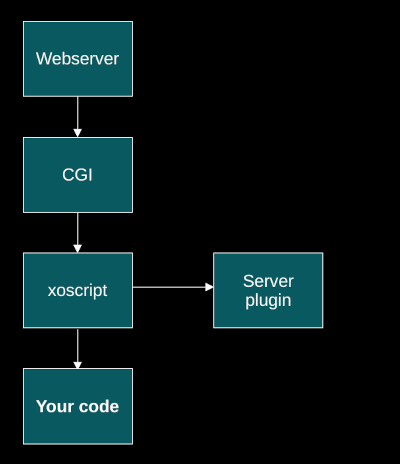
To use xoscript as a server language, you need to install the server plugin in a folder called /mods/server.
This is because we like to decouple the core language from server specific functionalities, unlike for instance PHP or Python. Otherwise we would have to ship the complete kitchen sink for no purpose to everyone, which is just silly. You can install other modules if you want as well. The system is very flexible.
Also some functions are better implemented in the scripting language itself like templating and session handling, so additionally we ship the template.xo and webtools.xo libraries for your convenience. The reason for all this is that we don’t know how you want to use xoscript. You can use it as a server-side scripting language, but also for GUIs, embedded devices or just batch processing. Even if you use it as a server-side scripting language (which is currently one of the primary use cases), you might still want to use a different template engine or a different session handler. Who are we to decide that you should use ours?
One of the advantages of using our own template engine is that you don’t have to learn additional syntax to create templates though. The default template engine that ships with xoscript uses 100% separation between presentation and logic. Instead of special template syntax, it simply uses a very flexible slot marker system. For more information, see the Server chapter.
Note that, if you don’t want to use the default template engine or the default webtools, it goes without saying that you have to provide your own.
If you run your webserver in a chroot, jail or other kind of sandbox, you also need to install the depencies of xo in that environment, you can see which libraries you need by using ldd (see the manpage of Linux or BSD). If you want to use shell commands in your xo-scripts, also copy a shell (like bash or ksh) to this environment.
We also like to note that we take backward compatibility very serious. There is even a special backward compatibility feature available called ‘version’. In general, we aim to make your code run forever. So, you will never have to update your code to remain compatible with newer versions of xoscript. Our goal is: write once, run forever.
The remainer of this manual is dedicated to explaining the programming language xoscript in detail. Server-scripting is discussed in the chapter called Server. If you are an experienced software developer, you might want to skip a few chapters because some of them are a bit too detailed or are very similar to general programming practices. So for those of you who are already have experience with several other programming languages, you better treat this manual as a reference guide.
Setup Linux
To install xoscript, just download the package from the download center for your platform (Linux or OpenBSD).
To install xoscript as a server module for Apache2 edit
/etc/apache2/sites-enabled/000-default.conf
add:
<VirtualHost *:80>
    <Directory /var/www/html>
        Options +ExecCGI
        AllowOverride All
    </Directory>
    DocumentRoot /var/www/html
</VirtualHost>
Setup OpenBSD
Edit /etc/httpd.conf, add:
server "mydomain.com" {
    listen on * port 80
    root "/htdocs/mydomain/"

    location "*.xo" {
        fastcgi
        fastcgi socket "/run/slowcgi.sock"   # inside chroot
    }
}
Add the xo binary and mods, as well as any dependencies in the chroot.
Run examples
To run one of the example programs in the package:
./example.sh <name> <Linux/Win64> [clean]
For example, to run the FizzBuzz example on Linux:
./example.sh fizzbuzz Linux
To run the same example on OpenBSD:
./example.sh fizzbuzz OBSD
To run the example with a clean build:
./example.sh fizzbuzz OBSD clean
Unit tests
To run the unit tests:
./runtests.sh
To run the unit test without building (just testing):
./runtests.sh nobuild
Build
To build from source on Linux:
make clean
ISO="en" make
On OpenBSD:
gmake -f makefile.obsd clean
ISO="en" gmake -f makefile.obsd
To build the server plugin on Linux:
PACKAGE="server" NAME="server.so" make plugin-clean
ISO="en" PACKAGE="server" NAME="server.so" make plugin
To build the server plugin on OpenBSD:
PACKAGE="server" NAME="server.so" gmake -f makefile.obsd plugin-clean
ISO="en" PACKAGE="server" NAME="server.so" gmake -f makefile.obsd plugin
Hello world
After it has been transferred to your computer, you can extract the file and start xo by using the following command:
xo
To run a Xoscript, store the program as a file by adding -xo suffix (optional). In addition, insert the file name of your program after the Xoscript command:
xo myprogram.xo
When you run a Xoscript command while using your program file as a parameter, xo will read and execute your program file.
You can also start your program by dragging it to the xo pictogram.
On some systems you need to allow xo permissions to load dynamic libraries beforehand.
Tradition dictates that the first program in any new programming language should be a kind of salute to the world. In Xoscript, such a Hello world program looks like this:
Example:
Out write: ['hello world'], stop.
Result:
When this text is saved to a file, e.g. hello.xo, it can be executed as follows: .
xo hello.xo
Hello world
You can see the program output in the above-shown black window. Throughout this manual, the same visualisation will be applied to show the output.
Syntax
Xoscript is a pure object-oriented programming language. This means that xoscript perceives everything to be an object, therefore there are no other data types. There are essentially three basic routine actions in a program that is written in Xoscript: assigning, sending messages and responding. Exchanging messages between objects is the key part of a Xoscript program. The three individual routine actions are illustrated below:
| Action | Example |
|---|---|
| assign | >> x := 1. |
| unary Messages | x even?. |
| binary message | 1 + 2. |
| keyword message | x from: 0 length: 10. |
| answer | <- answer. |
This chapter will give you a general impression of the language Xoscript and describes its basic principles. Xoscript is a small language and founded on three actions (see illustration) which translate into approximately six grammar rules. That is all it takes to master the language.
No worries if things are not instantly obvious to you: all building stones will be explored in the next chapter (3) and the basic rules will be repeated. Current chapter, however, serves mainly as a general introduction to the language. The basic principles will be briefly explained and illustrated by several relevant examples. Any missing details will be outlined at a later moment.
Comments in Xoscript are prefixed with a # symbol. So the following line will be ignored:
# this is just a comment
Variables
To assign a variable you use the variable declaration symbol: >>. The name of a variable may contain all signs except for: <-, :=, whitespaces, periods, commas, colons, quotation marks [‘ ‘], and parentheses (). Furthermore, a variable cannot consist of multiple lines. Please note that a variable cannot begin with a number or a minus sign.
These are examples of valid variables:
>> password := ['Secret'].
>> ♡♡♡ := 3.
>> $ := ['dollar'].
>> +plus := True.
>> user-password := ['Pssst!'].
Invalid variables are for example:
>> -123 := ['negative number'].
>> password of user := ['Classified'].
>> password.of:user := ['Classified'].
>> ,x := 10.
After a variable has been declared, it can be used freely. This means that it is only necessary to use the declaration symbol the first time you use the variable (the declaration).
To be more specific, you cannot randomly start to declare a value to your variable (x := 2), as you must first declare the variable (>> x := 2). However, once declared you are allowed to change its value without using the declaration symbol(>> x := 2. x := 3.).
Note that it is mandatory to assign a value to a variable at the time of declaring. Contrary to other programming languages, you are not allowed to declare a variable without value. It is essential to explicitly tie each variable to an initial value. Nonetheless, feel free to initialise the variable with the None object. In this case, the variable can be regarded as being empty (>> x := None.). In short, to declare a variable without an initial value is not allowed. So,
>> x.
is invalid and will give an error message.
xoscript uses dynamic scoping of variables, for details consult the chapter Functions.
Literals
Xoscript perceives everything to be an object; i.e., all numbers, texts and code fragments. Numbers, such as 1, 2, 100, -999 and 1,234 are Number objects. All texts between single quotation marks are String objects. All code fragments grouped between curly brackets {…} are Function objects.
| Literal | Root object | Example |
|---|---|---|
| numbers | Number | 1,2,3… |
| strings | String | [‘hello’] |
| function | Function | { 1 + 2. }. |
Objects such as numbers and strings, always find their origin in a root object. For example, all numbers derive from the object Number. All strings derive from String and all code fragments from Function. In turn, all these objects stem from Object, which is, in fact, the root object of all objects.
Messages
Programming in Xoscript basically means sending messages to objects. The general notation to send a message to an object is as follows:
<object> <message>
To find out if the number 2, for example, is an even number, the message even? is sent to object 2:
2 even?
The answer will be True (again, an object). Unknown messages are usually ignored by objects; so no error will occur. Some objects (e.g., numbers or strings) respond to an unknown message in a predefined way (more on this subject later).
An object can receive three kinds of messages.
| Type | Number of arguments |
|---|---|
| Unary | 0 |
| Binary | 1 |
| Keyword | 1+ |
First, there are unary messages, see example above, which are without arguments. Second, there are keyword messages, which have one or multiple arguments, for example:
>> x := Number between: 1 and: 10.
In this case the message **between:and: ** is sent to Number, which is the root object of all numbers. The result will be a random number between 1 and 10. Finally, there are binary messages, which have only one character and one argument:
2 + 3
This looks like a math sum, but it actually just another message. The message + is sent to 2, with argument 3 which will return answer 5. Binary messages are allowed to be written without a colon.
Binary messages can be chained:
>> x := 3 + 2 - 1.
In this fragment + 2 is first sent to Number object 3, which results in Number object 5, after which -1 is sent to this number. Observant readers are correct to notice the discrepancy which this protocol shows regarding the conventional mathematical sequences of operators. Xoscript ignores the mathematical sequence in favour of consistency in its message system. As a result, the sum:
2 + 3 * 5 = 25
not 17.
This is by design. Parentheses can be used to modify the sequence order:
2 + (3 * 5) = 17
Most objects return themselves as a result in response to a certain message. This is helpful as it encourages further dialogue with this object by sending it a follow-up message:
Out write:
[' hello '] trim upper.
HELLO
Here, two messages are sent to the Text object: trim, followed by upper.
In the following fragment, the use of a comma is necessary to indicate that a new message is incoming. If not, Xoscript will get confused.
Out write: ['Hello!'], stop.
First, the message write: is sent to the pencil symbol followed by stop. Without the comma, Xoscript would think that you wish to send stop to string Hello!, a futile exercise.
The process sequence of messages is as follows: from left to right; start with messages in parentheses followed by unary messages. Next, binary messages and then end with keyword messages. See the example below:
Out write: 0.5 round + (2 - 1), stop.
Xoscript always reads from left to right: first, the message write: is sent to Out and is followed by the stop message. Within the argument itself, Xoscript reads from left to right, so 0.5 round then +.
The stop message adds a newline character to the string. The name of this message is inspired by telegraph systems. Messages in telegraph systems often used the word STOP to mark the end of a sentence (since punctuation was unreliable or costly).
Moreover, round takes precedence over +, because it is a unary message. Given the parentheses, 2 - 1 is calculated first, after which 1 is added to the result of 0.5 round (1).
The whole process will give the result 2, which is also the written answer. After the comma follows the stop message, which moves the cursor to a new line. Of course, the best way to fully comprehend the sequence order of Xoscript programs is with practise.
It is worthy to note that in Xoscript, contrary to many other programming languages, whitespaces are a fundamental part of its syntax. In particular when it comes to binary messages, whitespaces may cause some confusion. Always use a whitespace after a binary message. You cannot directly attach a number to the message, for example:
3 + 2
different from
3 +2
The first example (3 + 2), sends the message + to the number 3, with argument the number 2. The result, in this case, will be 5. In the second example (3 +2) , the unary message +2 is sent to number 3. Depending on the context that might yield a very different result.
Non-existing methods
Sending a message to an object invokes the function that has been attached to this object under that message name. If you send a message that is not understood, the receiving object will ignore your message and return a reference to itself instead for further communication. This is called tolerant message passing.
Example:
Out write: Object blah, stop.
This will not give an error. It will simply print the text Object.
Control Flow
In Xoscript there is no need for separate grammar rules for loops and ifs. An if-statement is just a simple true: or false: message to either a True object or a False object:
2 even? true: {
    Out write: ['Two is an even number'], stop.
}.
In the previous example, the message true: is sent to True, (the answer to the question: is 2 an even number?) As argument an additional fragment of code is sent along: a Function object. This function writes on the screen that 2 is, in fact, an even number.
There is no need either for separate writing rules for a loop. To execute a fragment of code three times, simply send * with argument 3 to that Function:
Example:
{ :i

# the first parameter of
# the function (i) is the index

Out write: i.

} * 5.
Result:
In this code fragment i is the index. So the first time the Function is executed, i equals 0, the next time it gets executed, i = 1 and so on.
Let’s consider another example. When a conversion table needs to be printed from kJ (kilojoule) into kcal (kilocalorie) by steps of 100, see below for the correct notation:
Example:
{ :line

>> kJ := line * 100.

Out write: kJ, stop.

Out write: kJ * 0.239, stop.

} * 10.
Result:
Here, the number of the current line is transmitted to the parameter :line. At the beginning of a function, the function parameters are being defined. Unused parameters remain empty (None). Parameters are always placed at the start of the function, directly after the initial curly bracket and are preceded by a colon.
The message while:, is a combination of a loop and a condition. Two functions can be linked using the while: message. The receiving function will continue to run until the function after the colon will give a negative result. Example:
Example:
>> x := 0.

{ x add: 1. } while: { <- x < 5. }.

Out write: x, stop.
Result:
In the above-illustrated code fragment 1 is added to x as long as x is less than 5. When this is no longer the case, the second function will answer with False, consequently, the execution of the first function will end. Note that x has been defined outside the function and is a global variable. To learn more about scoping rules, consult the chapter about Functions.
String interpolation
The kJ/kcal list could be made more presentable. Preferably, the list would be as follows:
100 kj ➞ 23.88 kcal

200 kj ➞ 47.76 kcal
When you convert the preferred output into a template, its notation could be:
number1 kJ ➞ number2 kcal
This means that number1 stands for kJ-value and number2 for kcal-value. This is how string interpolation operates in Xoscript. There are no separate grammar rules needed for this in Xoscript. Simply send the word that needs to be replaced to the text with the substitute text as argument:
>> text :=

['number1 kJ ➞ number2 kcal']

number1: 100,

number2: 23.9.
The result:
100 kj ➞ 23.9 kcal
This substitution rule works for each undefined message that is received by a string object. Each message that is not recognised by the string object, will be interpreted as follows: replace the message text with the text within the message argument. You can adapt the program as follows:
Example:
{ :line

>> kJ := line * 100.

>> kcal := kJ * 0.239.

Out write: (
	['number1 kJ ➞ number2 kcal']
	number1: kJ,
	number2: kcal
), stop.

} * 10.
Result:
To avoid confusion about which message can or cannot be used as a substitute, it is best to introduce a template marker like < > for text segments in the template that need to be replaced.
Return values
To answer a message the return arrow (<-) is used. The following example illustrates how to create a task to compute a percentage:
Example:
>> percentage := {

	:number :percent

	<- number / 100 * percent.

}.

Out write: (
	percentage apply: 100 and: 7
), stop.
Result:
After the task has been defined and assigned to variable percentage, the message apply:and: is sent with arguments 100 and 7.
This will execute the task applied to 100 and 7, i.e., 7% of 100. Using the return arrow, the answer is returned from the task back to the main program.
Extending
Although this code is valid, it has a disadvantage because the sequence of the arguments has to be remembered. So, why not write it like this: *7 percent of: 100 *? That would look a lot more natural. To make this possible, we have to adapt the parent object of 7, which is the Number object, so that it will understand the message percent of:. This can be achieved by sending on:do: to the Number object, like so:
Example:
Number on: ['percent-of:'] do: { :number
	<- number / 100 * self.
}.

Out write: (
	7 percent-of: 100
), stop.
Result:
As the percentage is, in this case, the number itself, we refer to self, the self keyword. In short, the symbol self signifies: send this message to myself.